
WhatsApp, the app you’ve been using for, you know how long, has been adding and discontinuing features since it launched around 2009, all to better serve its over 3 billion users, among whom most people stick to the basics. In this article, you’ll get some WhatsApp tips and tricks to control your privacy, tidy up your chats, and make the app work the way you want.
#1. How to Prevent People from Adding You to WhatsApp Groups
From strangers with your number to friends and colleagues adding you to wedding WhatsApp groups where you don’t even know the bride and groom, you can control who adds you to WhatsApp groups.
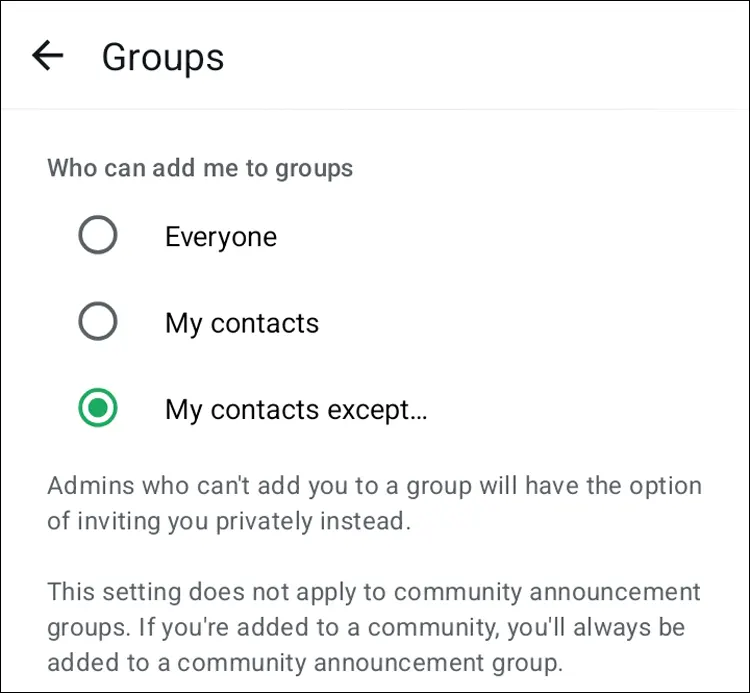
Open WhatsApp → Settings → Privacy → Groups → choose My Contacts or My Contacts Except (excepting all contacts means no one can add you to any group unless they send a link for you to join yourself)
Have you tried checking how many groups you joined without your permission?
#2. How to Use WhatsApp Text Formatting
Ever typed a long message and felt like some words need a little highlight? WhatsApp lets you format your text in simple ways, almost like you do in Word.
| How You Do it | What You Get |
| *Message* | Bold |
| _Message_ | Italicise |
| ~Message~ | Strikethrough |
| `Message` (Backticks) | Monospace |
| – Message or * Message | • Bulleted List |
| > Message | | Block Quote |
| *_Message_* | Bold & Italic |
#3. How to Hide Your WhatsApp Last Seen
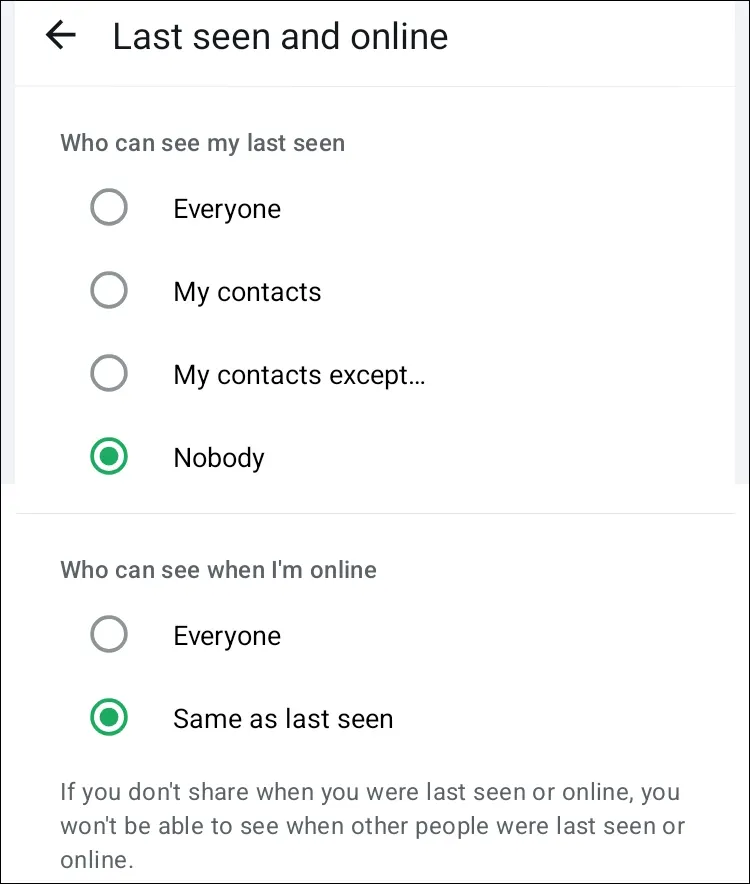
There are many reasons you might not want people checking your last seen, it could be personal or work-related. WhatsApp gives you a simple privacy setting that stops anyone from tracking when you’re online.
Go to Settings → Privacy → Last Seen and Online → choose Nobody or My Contacts. Below, ‘Who can see my last seen’ is ‘Who can see when I’m online’; you can choose Everyone or Same as Last Seen.
This gives you breathing room when you don’t want to explain why you didn’t reply right away. The trade-off is that you also won’t see other people’s last seen until you turn the feature off.
#4. How to Let Non-Contacts See Your WhatsApp Status
How to mention WhatsApp groups on your status
You can allow people in WhatsApp groups you are part of, either as a member or admin, to view your status even if you haven’t saved their numbers.
This is useful for businesses or campaigns that need to reach a wider audience. By mentioning groups in your status, all members will be notified and can view your update.
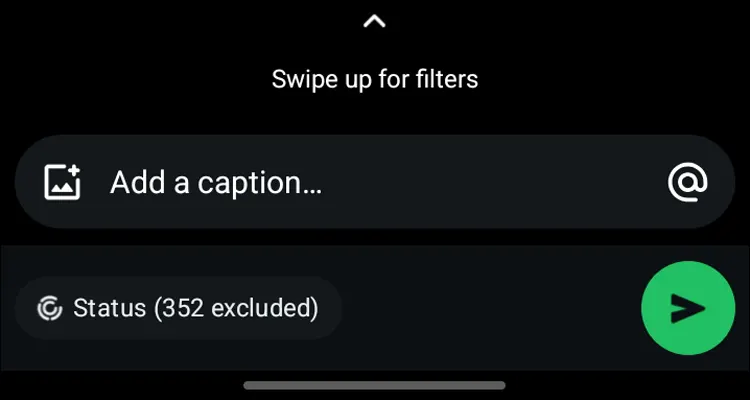
To do this, add a status by choosing a picture or video, then tap the @ in the bottom right to mention groups or contacts privately. Those mentioned (members of the group mentioned) will see your status in their status bar, among other saved contacts and can also share it.
On the other hand, are notifications from hundreds of mentions overwhelming you? archiving the groups can help, though leaving them is still the ultimate solution.
#5. How to Stop WhatsApp from Automatically Saving Photos and Videos
Those random photos and videos filling up your gallery, with only a few worth keeping? You can stop WhatsApp from automatically saving them, so your phone only keeps the ones you choose to save or download. This also saves mobile data and keeps your phone running faster, since media files eat into your phone storage.
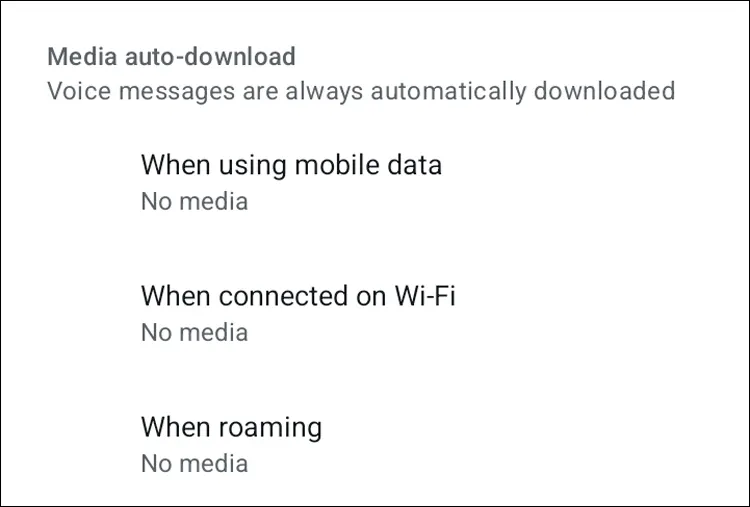
Go to Settings → Storage and Data → Media Auto-Download and turn off photos, videos, audio, and documents. On iPhone, select Never to disable auto-downloads for both mobile data and Wi-Fi.
#6. How to Control Who Can See Your WhatsApp Status
Want to share some savage memes on your status but feel watched by a few contacts, in-laws, or your like-father-to-me boss? WhatsApp lets you control who can see and who can’t see your status update. Below these settings, you can also disable the sharing of your status.
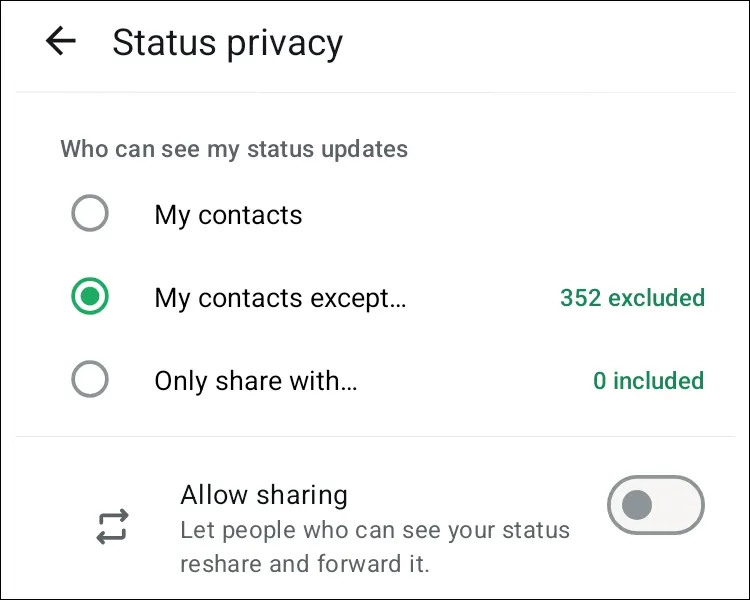
Go to Settings → Privacy → Status and choose from:
My Contacts – everyone in your contacts can see your status.
My Contacts Except… – pick the people you want to exclude.
Only Share With… – pick only the people who can see your status.
This is useful when you want to keep certain updates private, share announcements with a specific group, or simply avoid over-sharing with people who don’t need to see everything.
#7. How To Hide Your Profile Picture on WhatsApp (Who Can See Your DP)
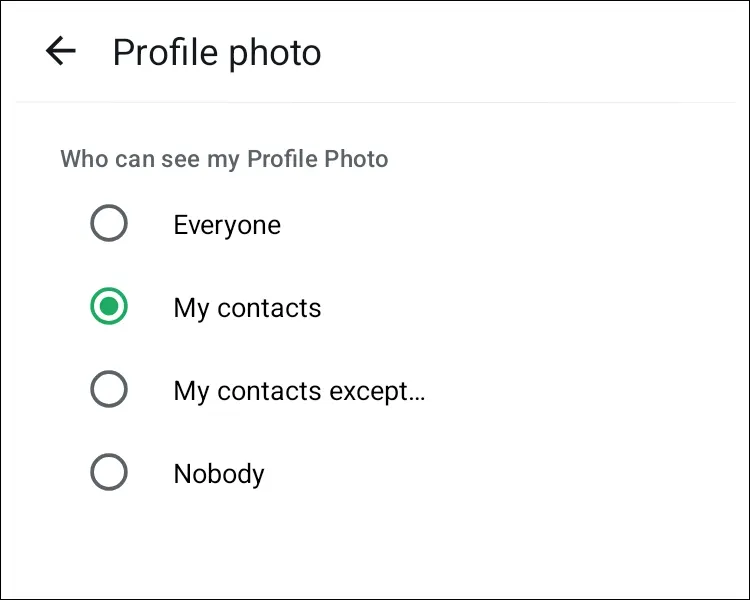
If you don’t want everyone seeing your profile picture, including strangers or contacts you barely talk to, without entirely removing the photo, WhatsApp lets you control who can view it.
Go to Settings → Privacy → Profile Photo and choose: Everyone, My Contacts, or My Contacts Except…